> ## Documentation Index
> Fetch the complete documentation index at: https://sequence-0fb8d9e6-api_docs.mintlify.site/llms.txt
> Use this file to discover all available pages before exploring further.
# Webhooks in Sequence Builder
> The content discusses the use of webhooks in Sequence Builder for game builders to listen to events on multiple blockchains.
Sequence Builder equips game builders with an indexer that listens to events across the many blockchains that we offer by providing an https callback
If you prefer a programmatic way to add webhooks that uses cURL, TypeScript or Go, check out [this walkthrough](/api-references/indexer/examples/webhook-listener).
#### What data can I listen to for my game?
* Mints from a contract
* TokenID transfers
* Transactions by an account address
* Event topics emitted by a contract
* Event topic hashes emitted by a contract
## Creating Webhooks
The following steps guide you through creating your webhook
1. Select Project and go to Webhooks Section
2. Select Network and Add New Webhook
3. Complete Webhook Details
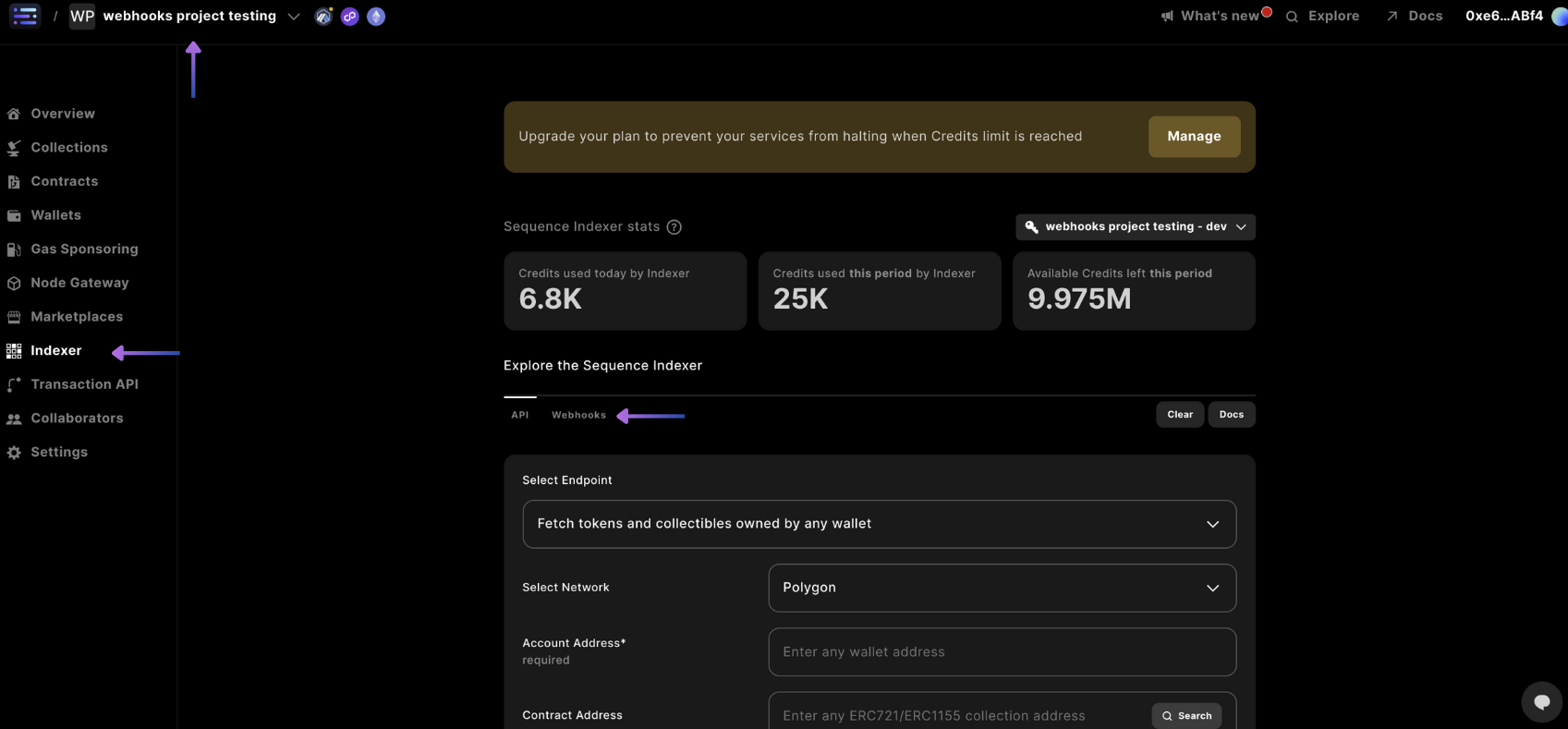
Select your project in the top left hand corner, select the `Indexer` section in the sidebar, and select the `Webhooks` tab.
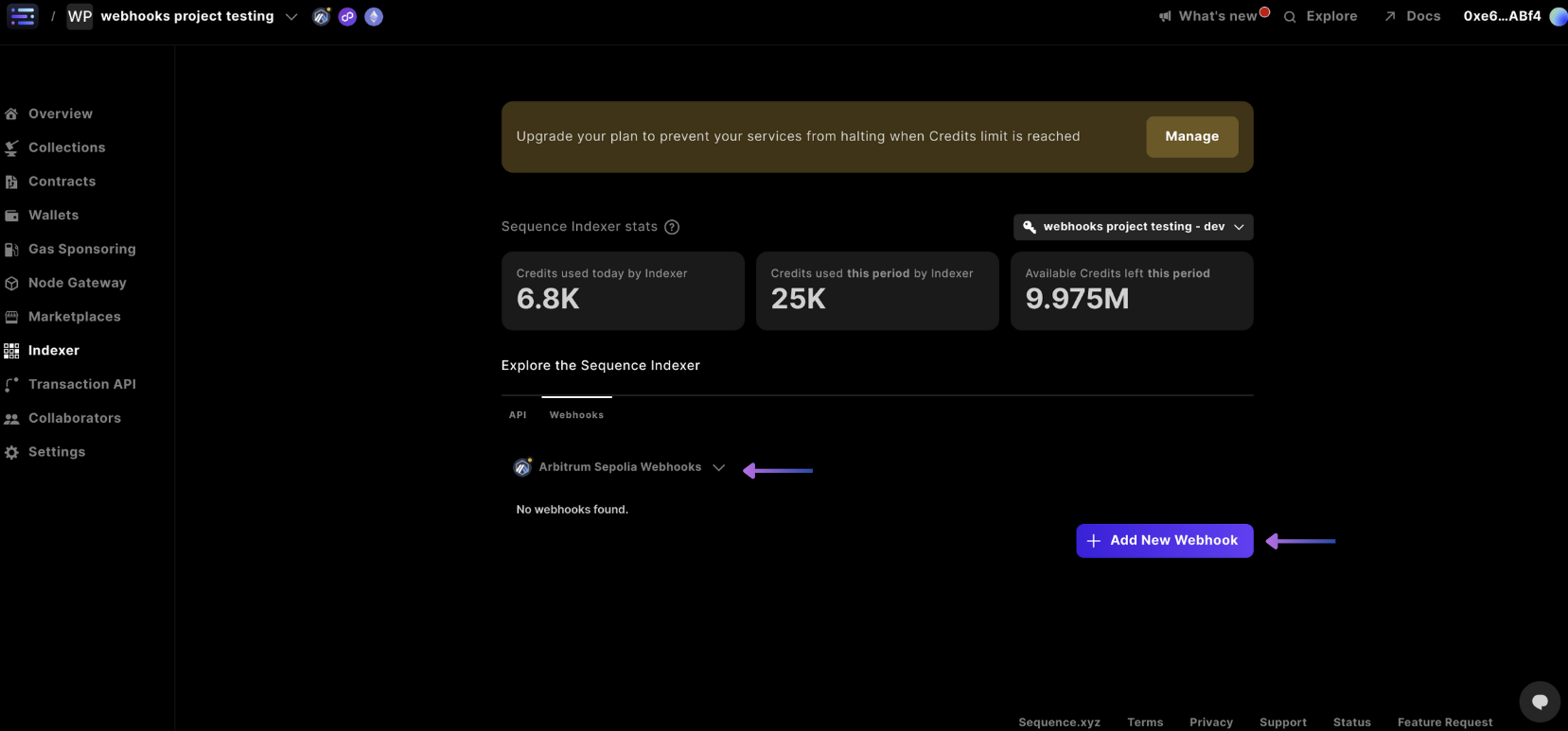
 In the dropdown beneath the webhooks tab, select the network you're looking to create a webhook for based on the ones in your project. If you don't see the network you're looking for, you can always [add a network](/solutions/builder/project-settings#3-network-settings), then `+ Add New Webhook`
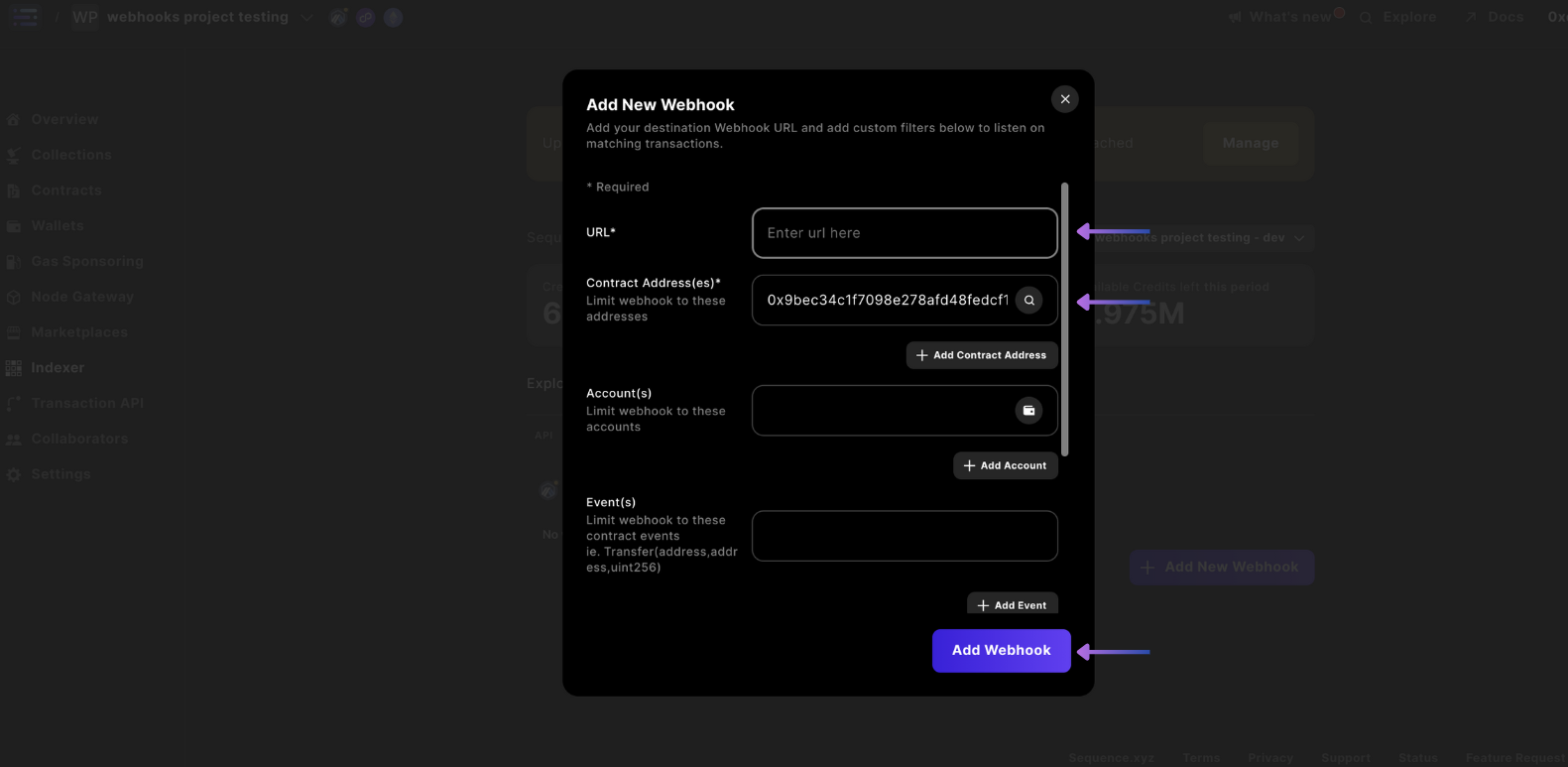
 Complete the required details like webhook `URL`, `Contract Address(es)`, and 'Events'.
For the Events field, we are able to parse any arbitrary contract event, however you must input the event exactly as written in your smart contract. For example, for detecting transfer events you would input: `Transfer(address indexed from, address indexed to, uint256 amount)` with the `indexed` keyword. You can find an example of general event types [here](/api-references/indexer/examples/webhook-listener#on-chain-token-event-types) for common use cases along with Sequence specific ones.
Once your desired fields are input, select `Add Webhook`.
If you require a webhook endpoint you can use [webhook.site](https://webhook.site/)
Or, you can use template code with one of the following:
[Nodejs TypeScript Webhook](https://github.com/0xsequence-demos/template-nodejs-webhook-server) (combined with [ngrok](https://ngrok.com/))
Complete the required details like webhook `URL`, `Contract Address(es)`, and 'Events'.
For the Events field, we are able to parse any arbitrary contract event, however you must input the event exactly as written in your smart contract. For example, for detecting transfer events you would input: `Transfer(address indexed from, address indexed to, uint256 amount)` with the `indexed` keyword. You can find an example of general event types [here](/api-references/indexer/examples/webhook-listener#on-chain-token-event-types) for common use cases along with Sequence specific ones.
Once your desired fields are input, select `Add Webhook`.
If you require a webhook endpoint you can use [webhook.site](https://webhook.site/)
Or, you can use template code with one of the following:
[Nodejs TypeScript Webhook](https://github.com/0xsequence-demos/template-nodejs-webhook-server) (combined with [ngrok](https://ngrok.com/))
 And you're done!
## Removing or Updating Webhooks
The following steps guide you through creating your updating or removing your webhook
1. Select Project and go to Webhooks Section
2. Select the Gear to Update or Remove your Webhook
3. Update or Remove Webhook
Select your project in the top left hand corner, select the `Indexer` section in the sidebar, and select the `Webhooks` tab.
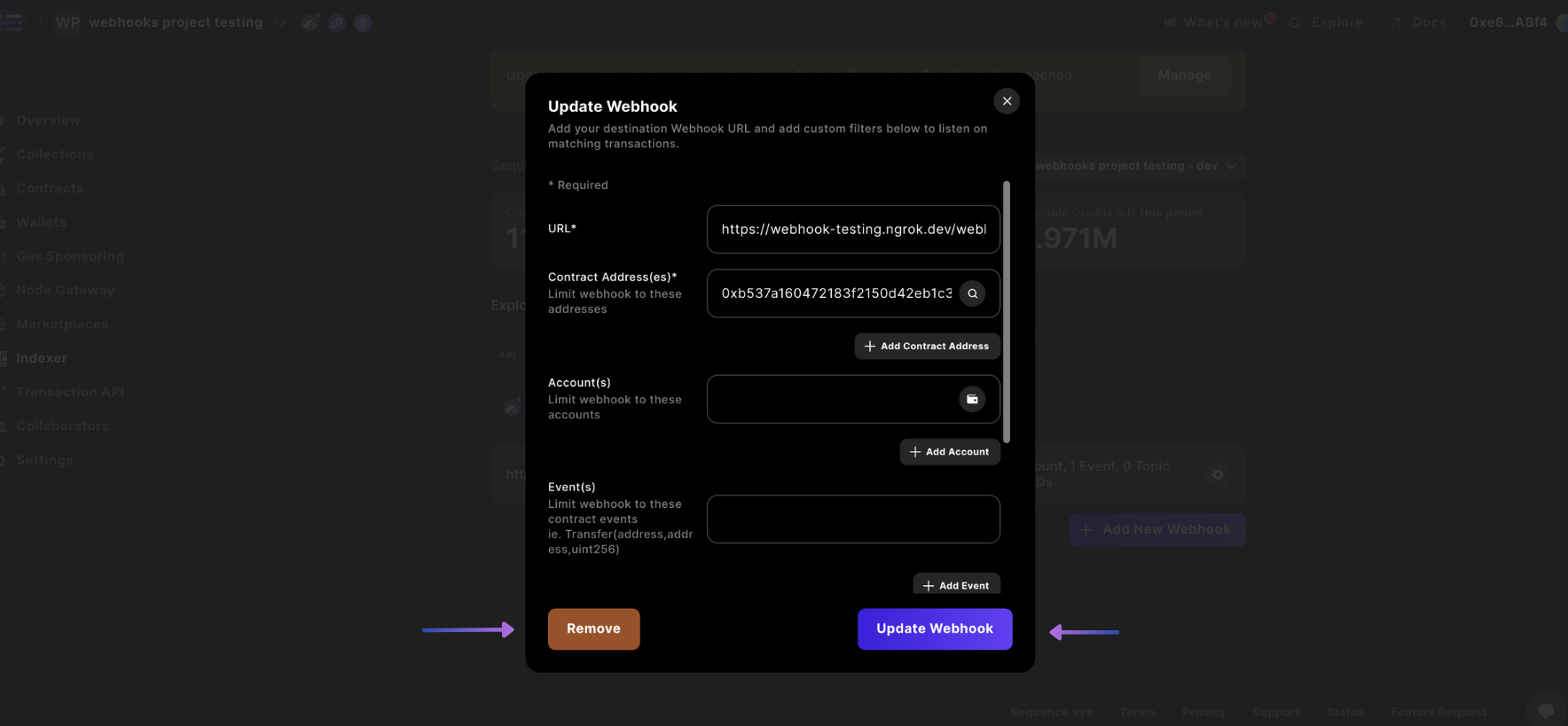
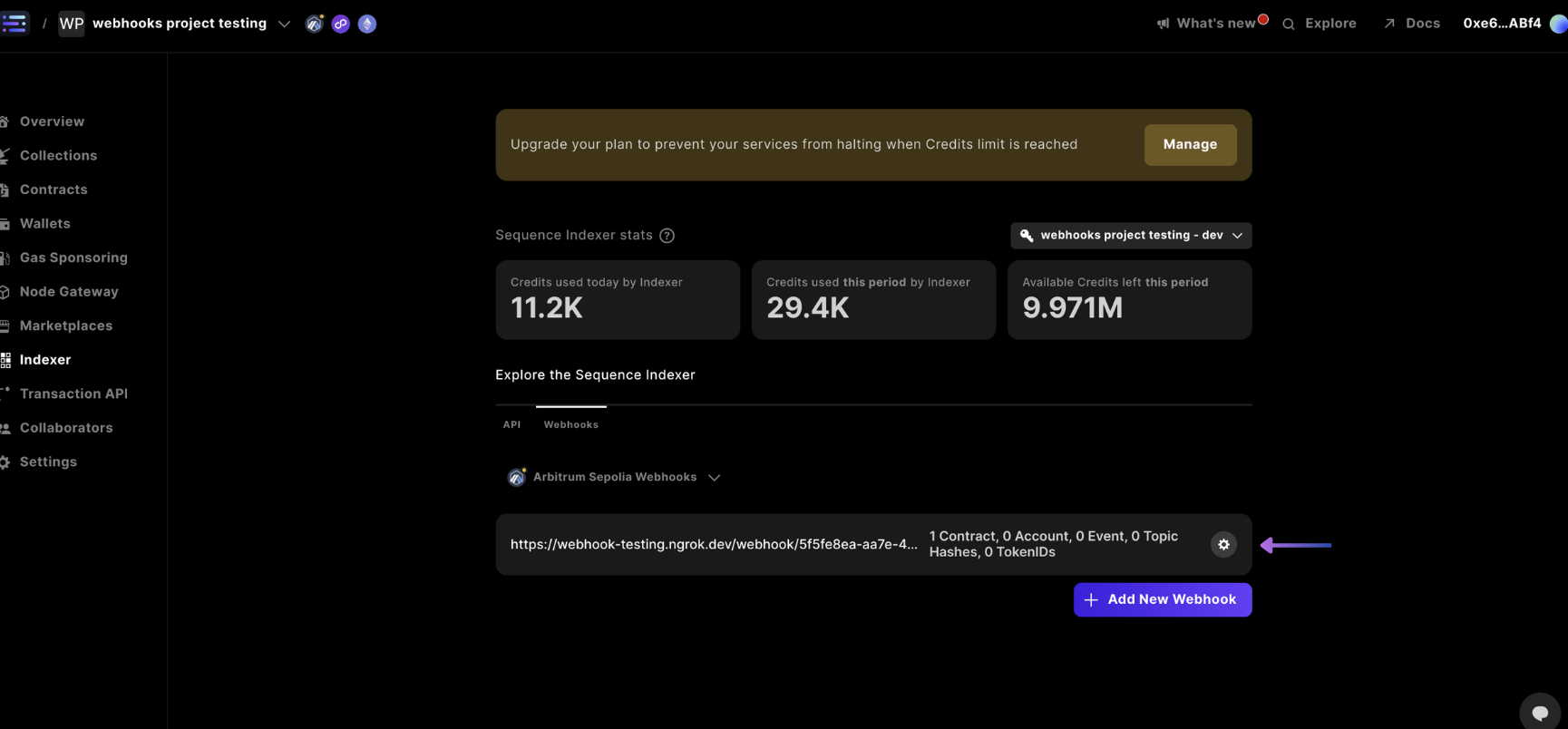
In the webhooks screen, select the gear `⚙` for the webhook you want to remove or update
And you're done!
## Removing or Updating Webhooks
The following steps guide you through creating your updating or removing your webhook
1. Select Project and go to Webhooks Section
2. Select the Gear to Update or Remove your Webhook
3. Update or Remove Webhook
Select your project in the top left hand corner, select the `Indexer` section in the sidebar, and select the `Webhooks` tab.
In the webhooks screen, select the gear `⚙` for the webhook you want to remove or update
 Then you can either `Update Webhook` or `Remove` your webhook by selecting either option